How to "Go Home" on your Verizon Droid (and Android in general)
As you probably know by now, Verizon’s Droid has been officially announced and it will be available in the US on November 6th.
It’s running Android 2.0 (“Eclair”), which is by far the most advanced release we have worked on. And in case you didn’t follow, this is the third official release in about a year (there has actually been one more that was never made official).
One of the features that has received the most coverage so far is our turn-by-turn navigation application, which turns your Droid into a speaking GPS device. While most articles I have read do a good job of covering its basic features, some articles deplore the absence of a “Go Home” function.
Well, actually, this function already exists.
It’s very simple really, all you need to do is create a home shortcut. Here is how you do it:
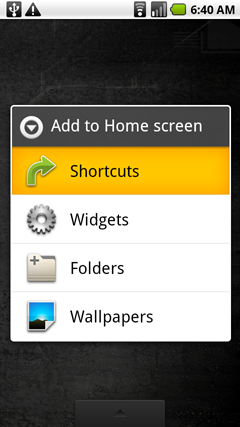
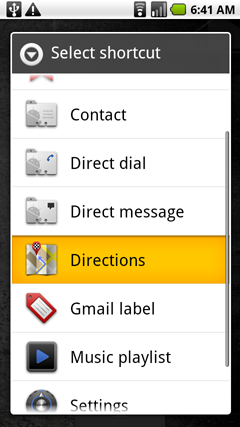
**Long press on the Home screen, select Shortcuts and then Directions. **
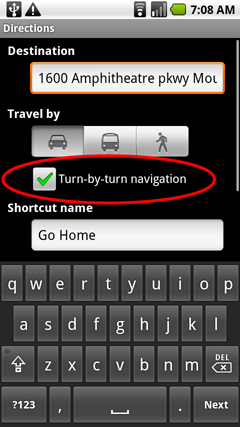
**Make sure that “Turn by turn navigation” is checked.
Enter your home address (or any other),
pick a name for your shortcut and press “Save”. **
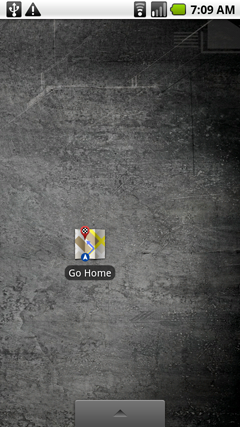
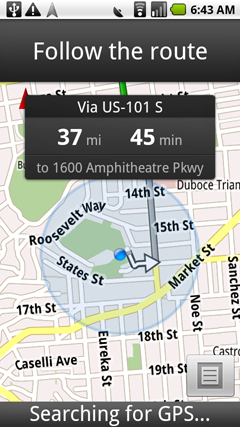
Your shortcut is ready, tap it to start navigating.
Happy navigation on your Droid!
Comments (5)
Sounds interesting! I hope I could be able to get a Droid, but obviously, it will be expensive for me. By the way, I'm translating TestNG documents to Chinese these days. I am in hope that more and more Chinese developers can use this elegant and excellent testing framework.
Will the shortcut show up in Car Mode?
Will my 1.6 automatically update to 2.0?
I love my HTC Hero (Sprint) but .. Its 5MP camera produces fuzzy pictures and video as compared to say a Palm-Pre or IPhone which are only 3MP. Is this something that can be fixed via a software update? Also for the life of me - I can't find simple Apps on the Android Market for Note taking and Todo lists that have reminders and stores its content directly on the SD card (vs. exporting them etc.) These were somethings I got really used to on my old Palm Treo.
@xsonymathew I also own a Hero and there are a few things you might try. First, unless you need the extra 2 megapixels, go ahead and switch down to 3MP for your pictures. I've noticed this has helped in a few situations. (Maybe the phone processes the 3MP photos faster than the 5MP photos?) Also, make sure you keep the phone steady even /after/ you hit the button to take the picture. This definitely will help. Another thing you can do is bump up the sharpness just a bit in the settings and see if that helps. Finally, you can touch on the screen itself to tell the camera exactly which part of the picture you want to be in focus.